Quorum Server Update
Software Download
Requirements
- Model of the Storage Arrays (e.g. OceanStor Dorado)
- Software version of the Storage Arrays on HyperMetro
- Operating System of the Quorum Server
Tasks
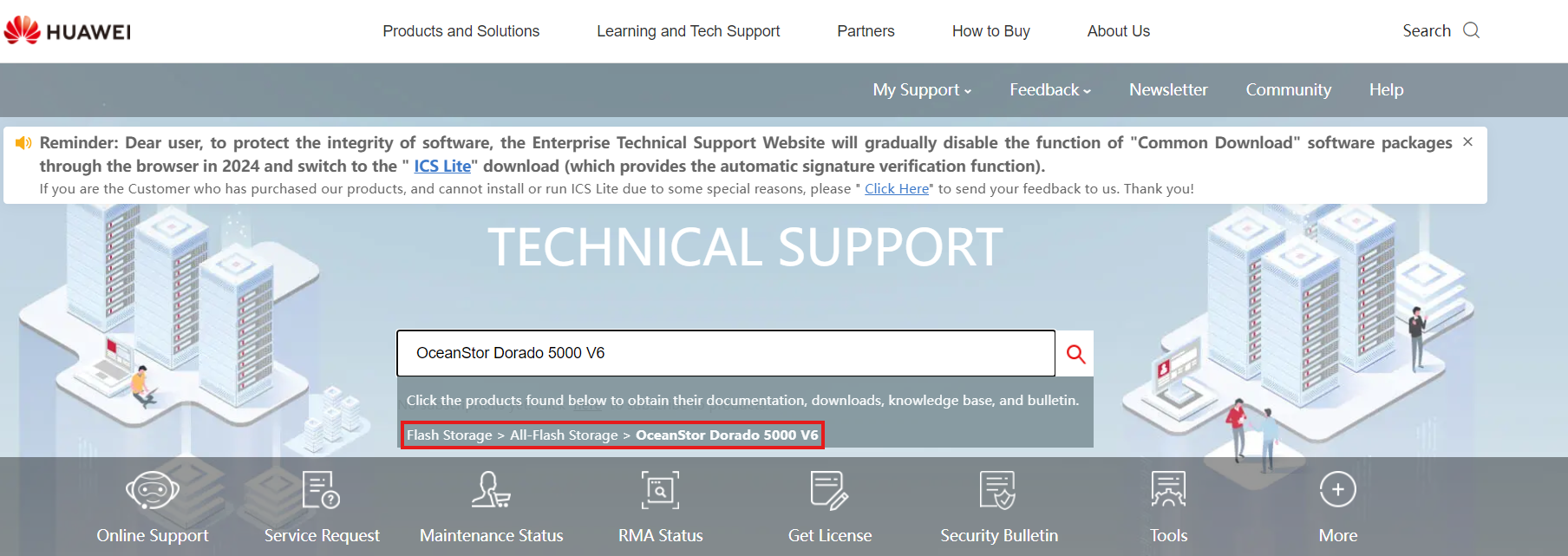
- Enter: https://support.huawei.com/
- Search the Model of the required Storage Solution
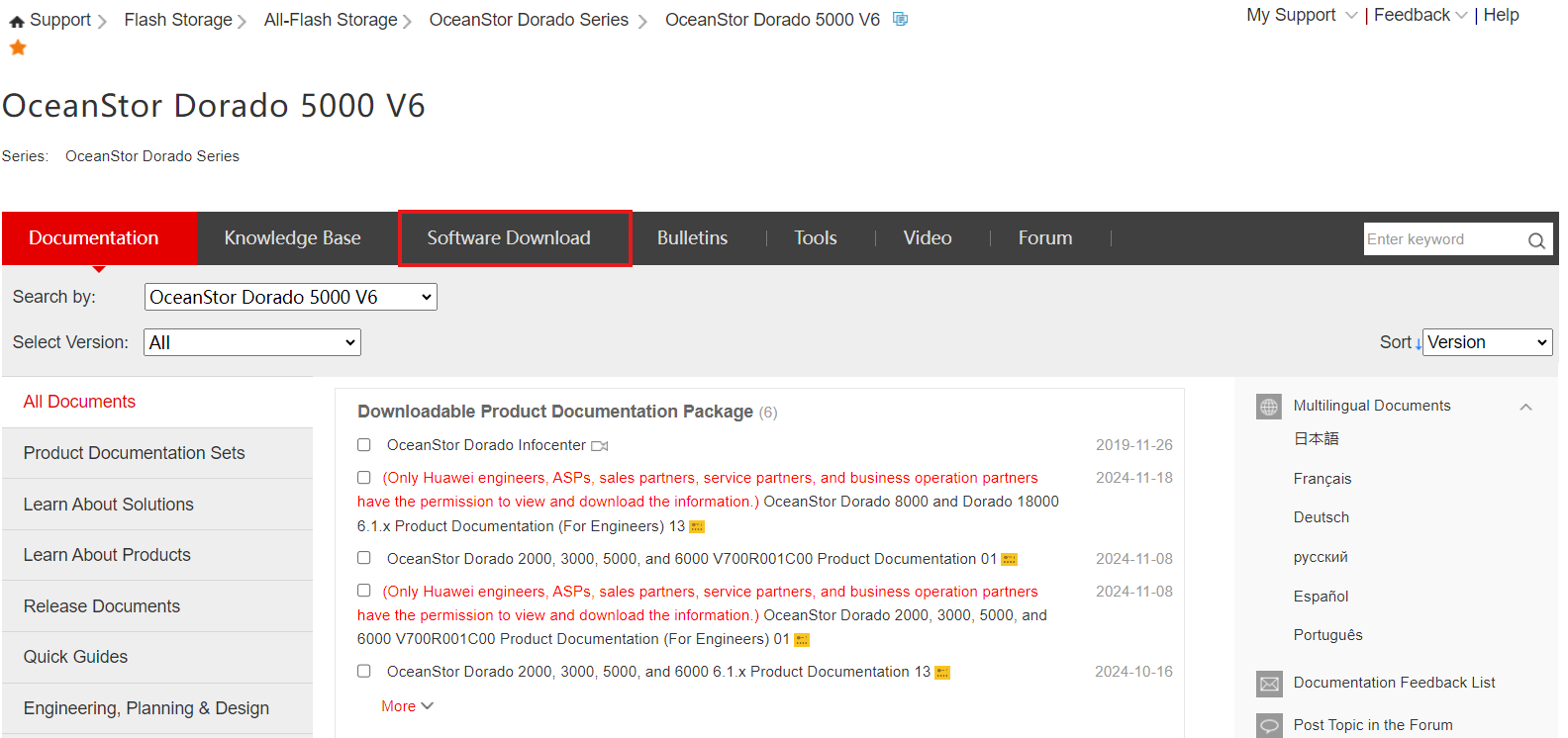
3. Click Software Download
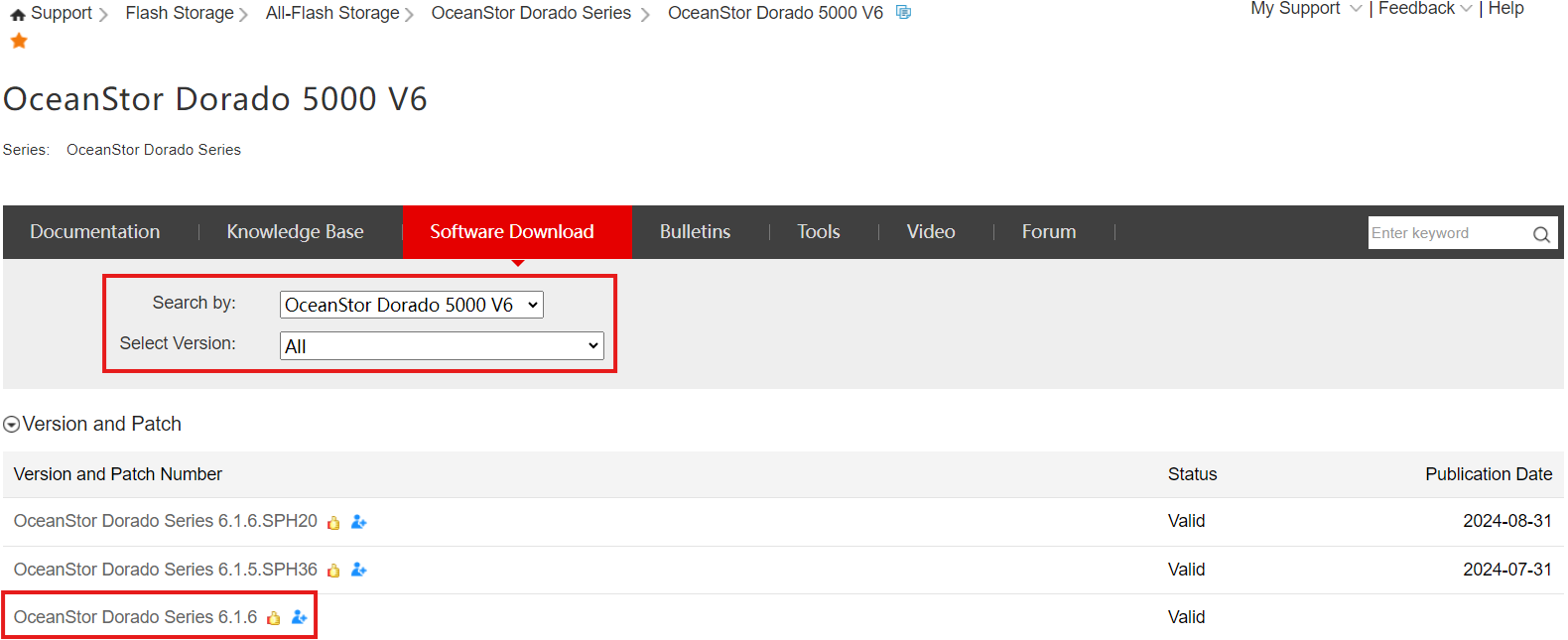
4. Select the Main version the Storage Cabinets are on
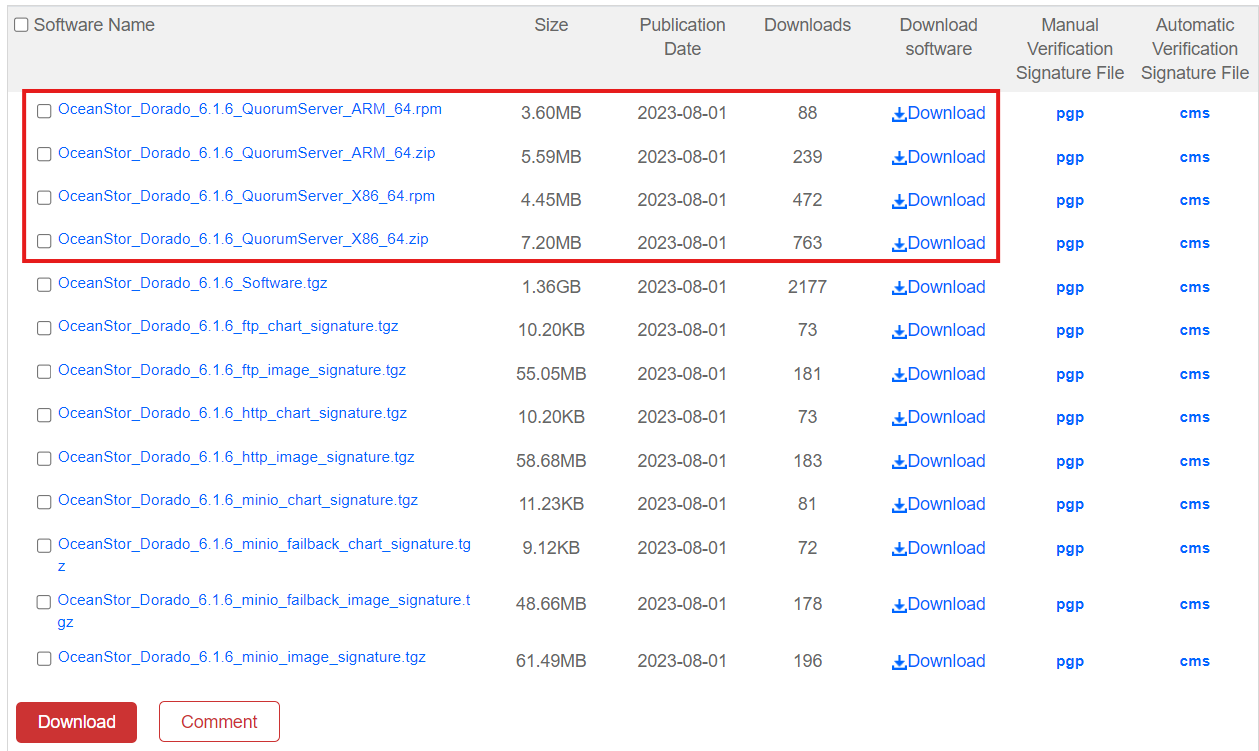
5. Download the Quorum Server Software, depending on its Operating System
- Linux: .zip
- RedHat: .rpm
Quorum Server Update
Requirements
- Software downloaded for the Quorum Server (see previous point)
- Connection to the Quorum Server
Tasks
-
Connect to the Quorum Server CLI
-
User: quorumAdmin
- Pass: Huawei@SYS3
2. Upload the Software downloaded on the previous point to the Quorum Server
3. Check whether the system is in bash or dash:
bash
   ls -l /bin/sh
4. If the result is bash, continue. If it's dash, enter this command and select NO:
bash
   sudo dpkg-reconfigure dash
5. Enter the 'package' directory inside the Upgrade File:
bash
   cd package
6. Start the upgrade for the Quorum Server:
bash
   sudo sh ./quorum_server.sh -upgrade
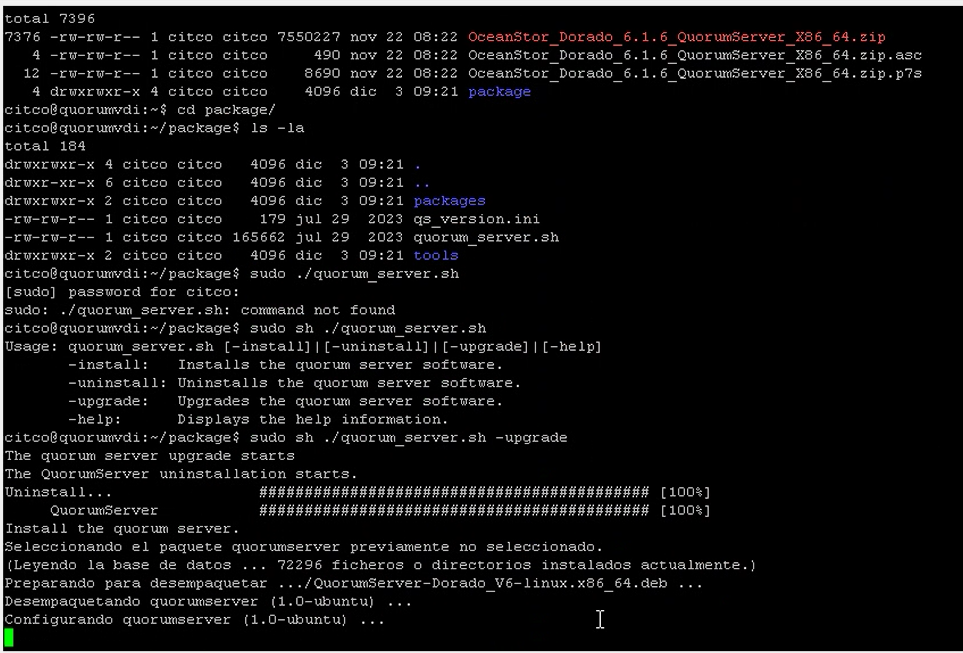
7. Enter the Quorum Server:
bash
   sudo qsadmin

8. Display the Cipher Configuration:
bash
   show cipher_info
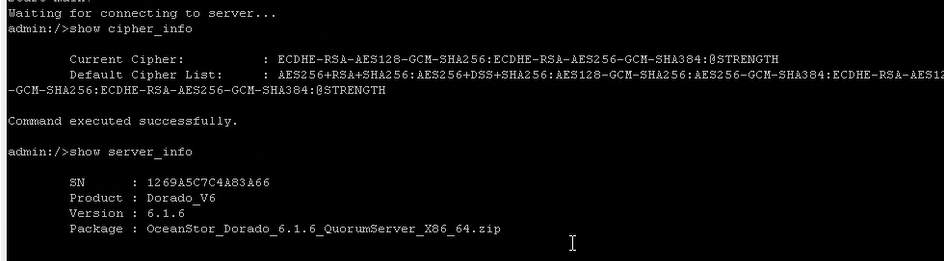
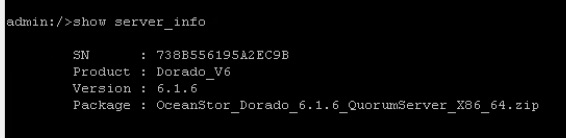
9. Display information about the Quorum Server and the version to verify the update:
bash
   show server_info
10. Display the IPs connected to Quorum Server to verify the connections:
```bash
show server_ip
```
