DME IQ Configuration
Requirements
- Customer has uniportal account
- Storage Cabinets are registered on customer's account
- Customer's Business type (Enterprise / Carrier)
Data
- User Guide: [[DME IQ Client 23.0.x User Guide.pdf]]
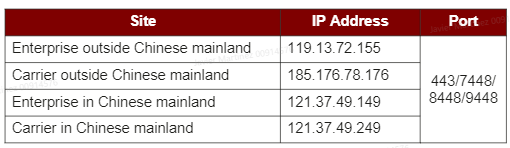
- Network Information on DME IQ:
Tasks
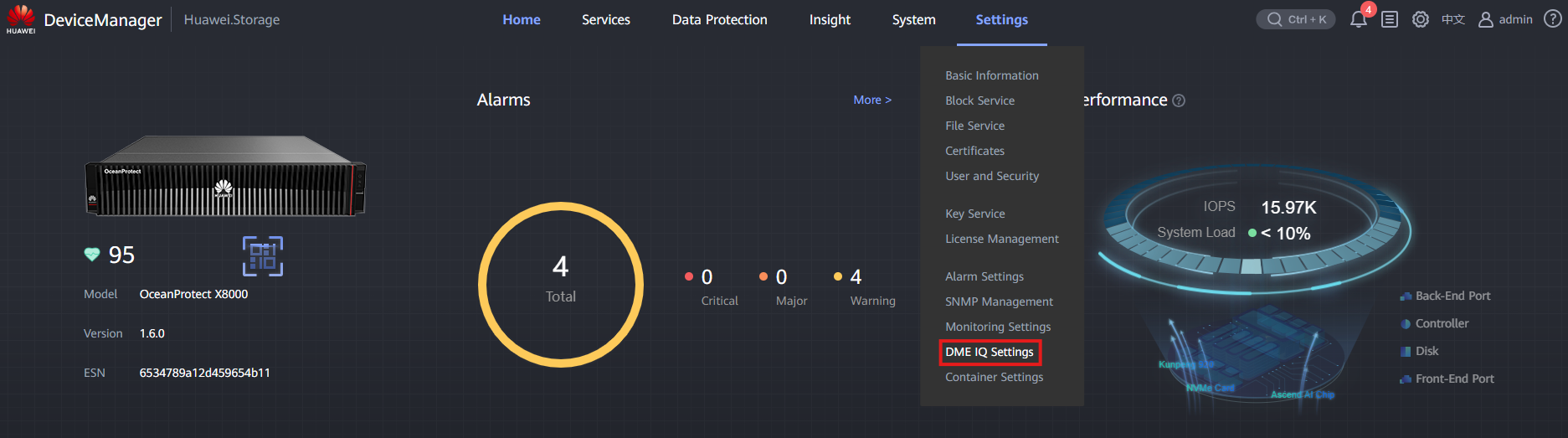
- Enter the Device Manager (https://192.168.128.101 or the IP of the port)
- Go to Settings > DME IQ Settings
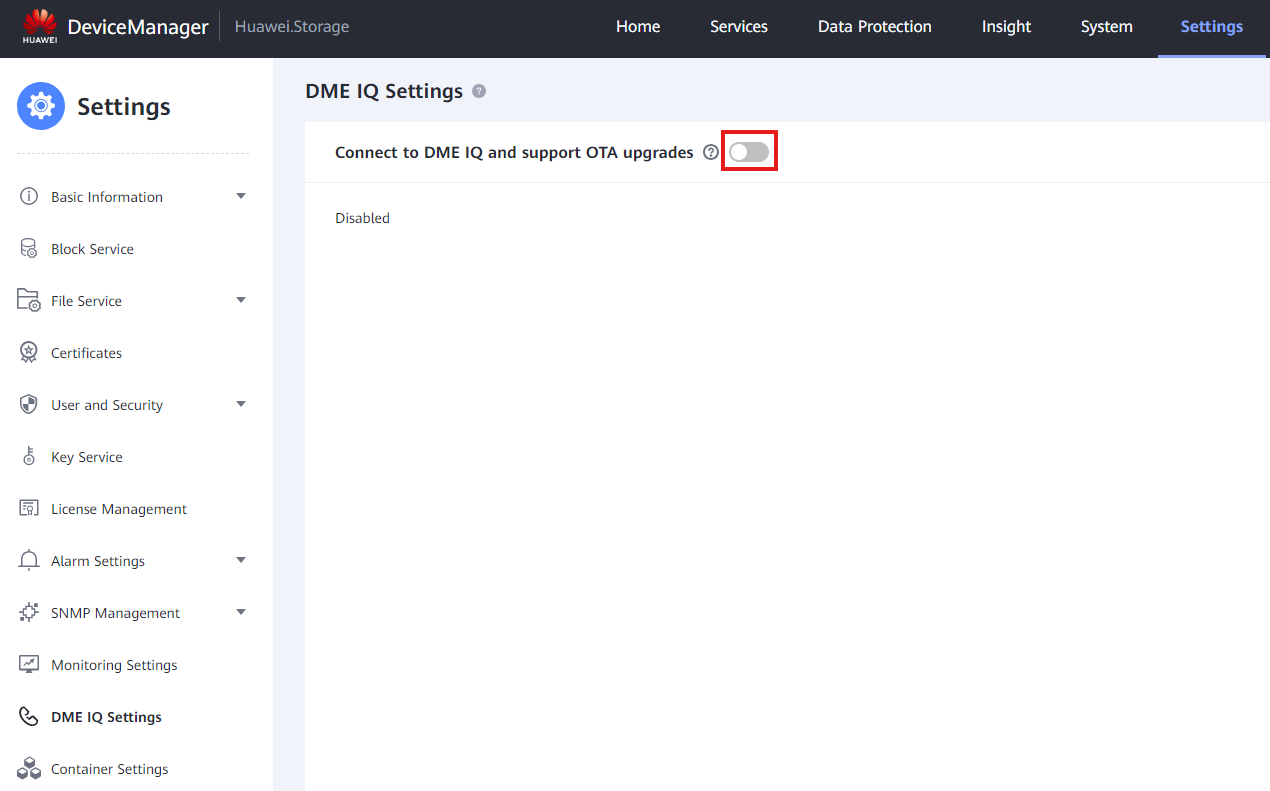
- Toggle ' Connect to DME IQ and support OTA upgrades '
-
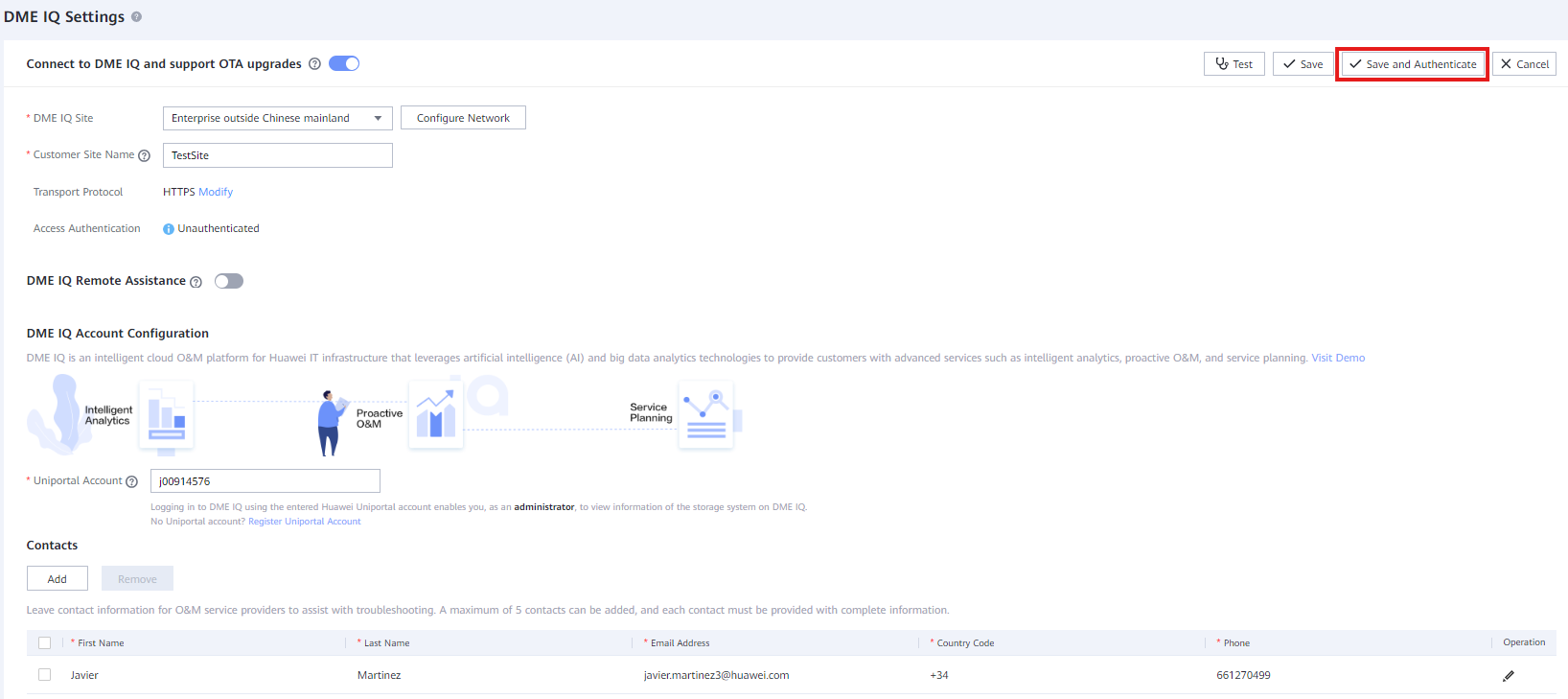
Fill out the information:
-
DME IQ Site : Customer's business type
- Customer Site Name : Descriptive name for the customer's site
- Transport Protocol : HTTPS for Internet / SMTP for Email
- Uniportal Account : Customer's uniportal account
- Contact : Add Huawei's employee contact information
- Click ' Save and Authenticate '
-
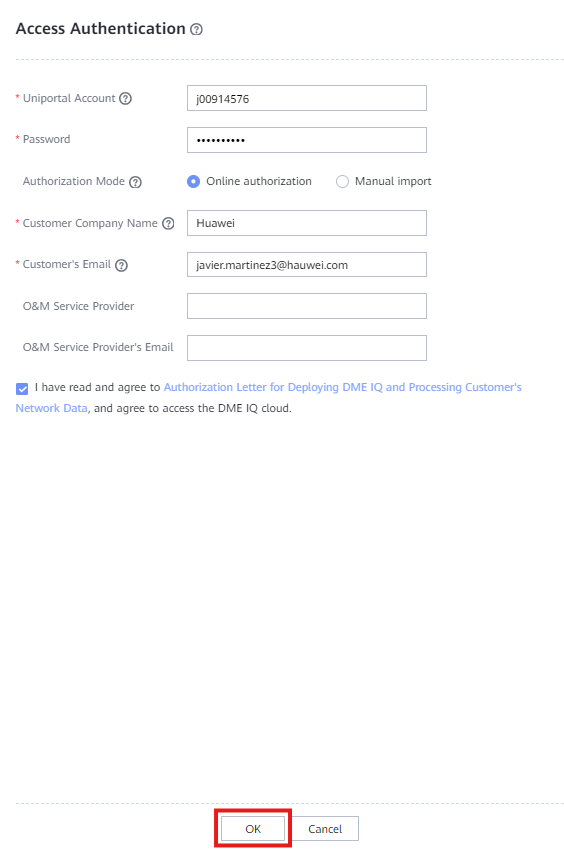
Fill out the information:
-
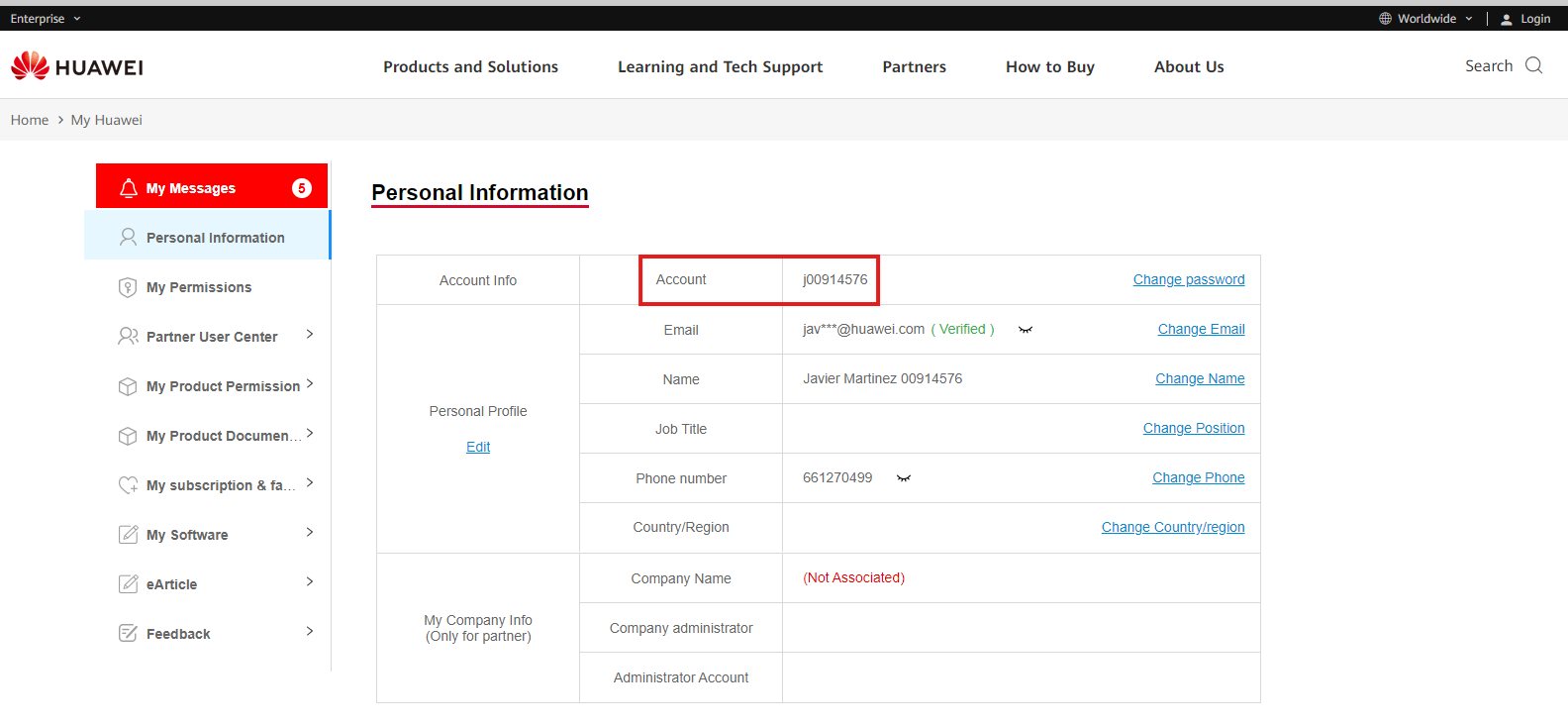
Uniportal Account : Customer's uniportal Account, can be found here: https://e.huawei.com/en/myspace/accountinformation
- Password : Uniportal account password
- Authorization Mode : Online authorization
- Customer Company Name : Name for the customer's company
- Customer's Email : Uniportal Email
 7. Click ' OK ' to try the authentication
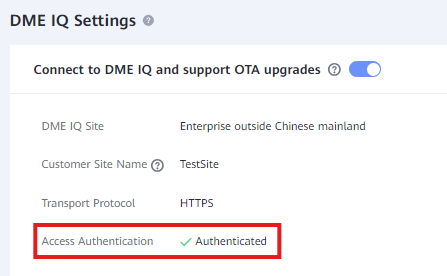
 8. If all worked correctly, it should appear Authenticated:
 9. Login to your DME IQ account and wait for the Storage Cabinets to appear
10. Open a TAC ticket to validate the Cabinets for the customer: Eusupport@huawei.com
9. Login to your DME IQ account and wait for the Storage Cabinets to appear
10. Open a TAC ticket to validate the Cabinets for the customer: Eusupport@huawei.com