Storage Cabinet Configuration
Selecting Cabinet Model
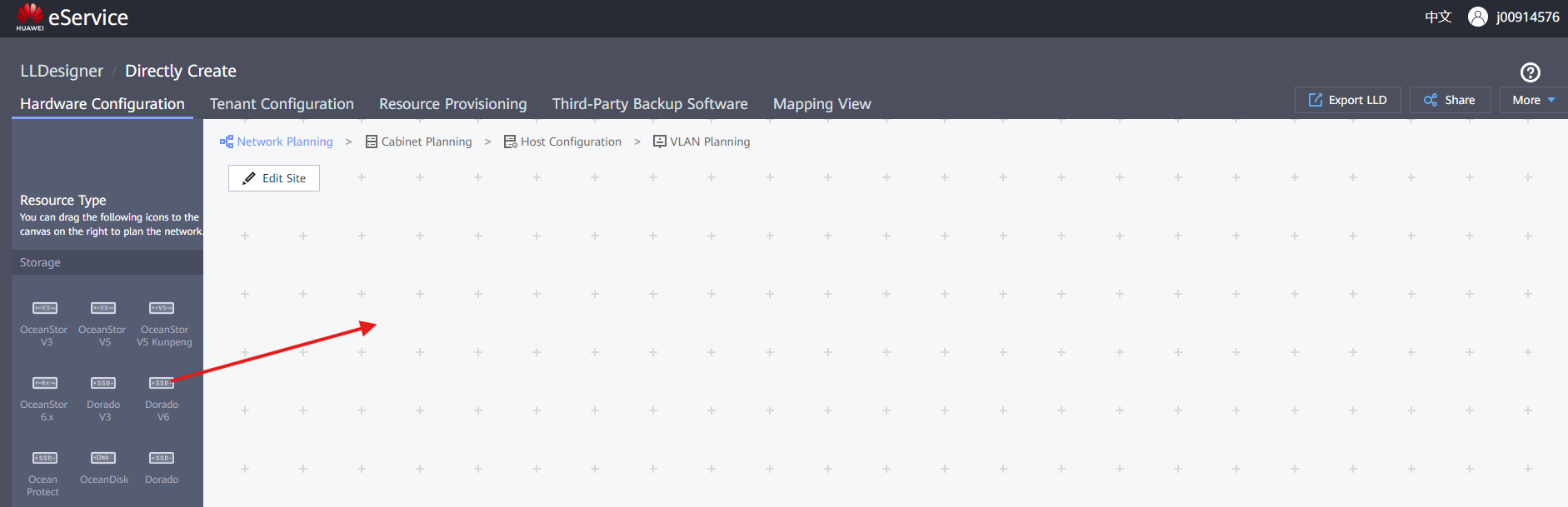
- Select the cabinet to represent on the design (given from client)
- Drag & drop the cabinet onto the canvas
-
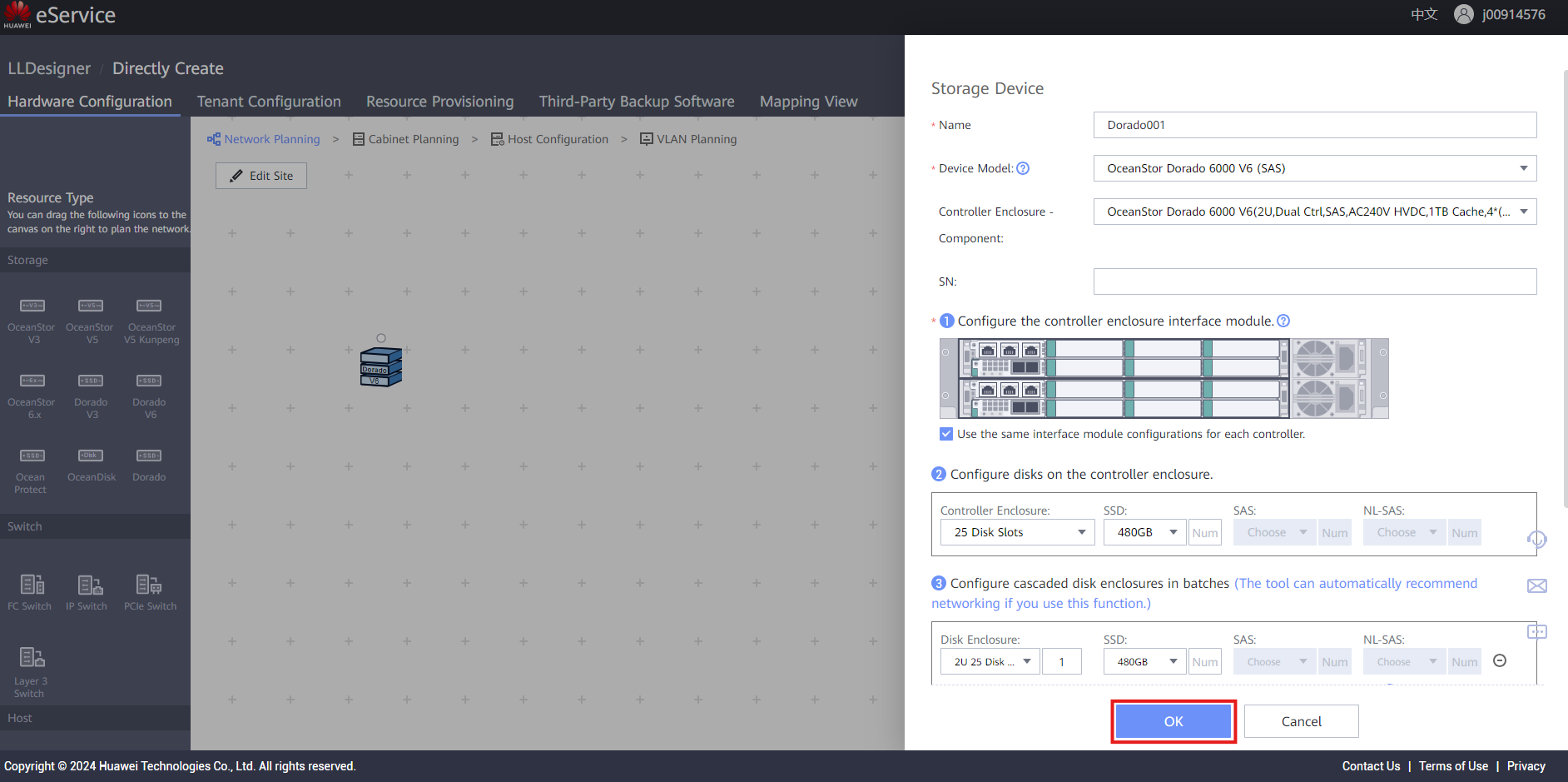
Fill out the information:
-
Name : Descriptive name for the cabinet
- Device Model : Select the Model (given by client)
- Controller Enclosure : Normally leave as it is
- SN : Input (if known) the ESN of the cabinet
- Click ' OK ' to create the Storage Device
IO Interface Modules Configuration
- Click the Storage Device that needs configuration
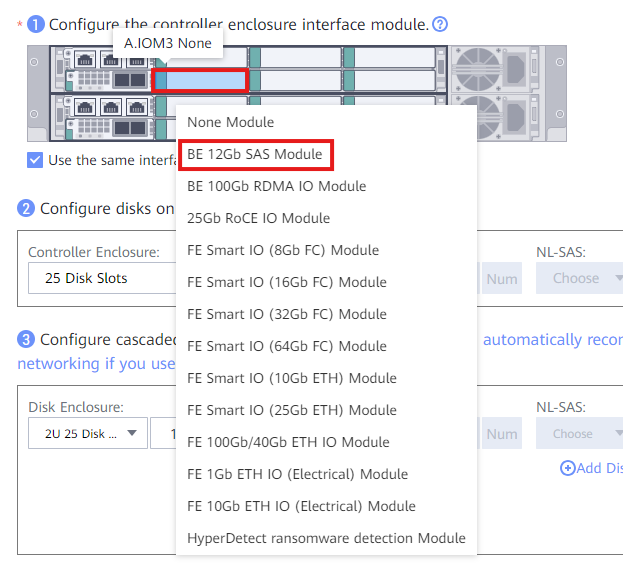
- Right click on any slot to add an Interface Module , see Best Practices below
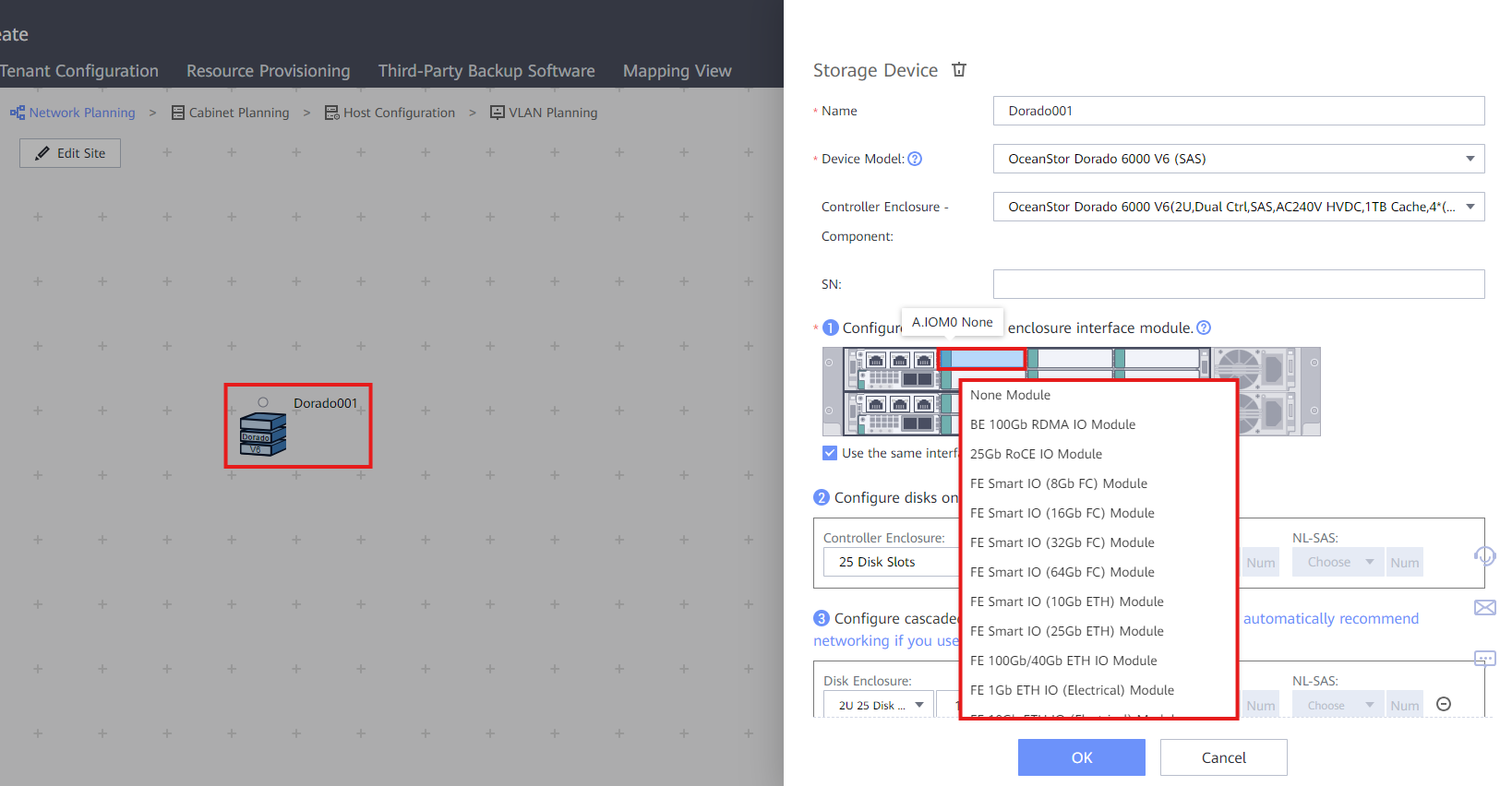
- Following the document from presale, fill out the ports decided by the client
- When all ports are assigned, click ' OK ' to finish the process
Best Practices
- SAS Module normally goes right next to the SAS ports of the cabinet (for DAE expansion)
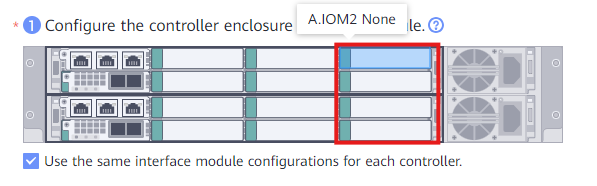
- Following the priority of the ports, the right-most slots are normally left empty for scale-out
Adding DAEs (Disk Array Enclosures)
- Click the Storage Device that has DAE(s)
- If the SAS ports available on the controller are not enough for the number of DAEs, a SAS interface module must be added into the controller
-
Move to Point 3 and select the information:
-
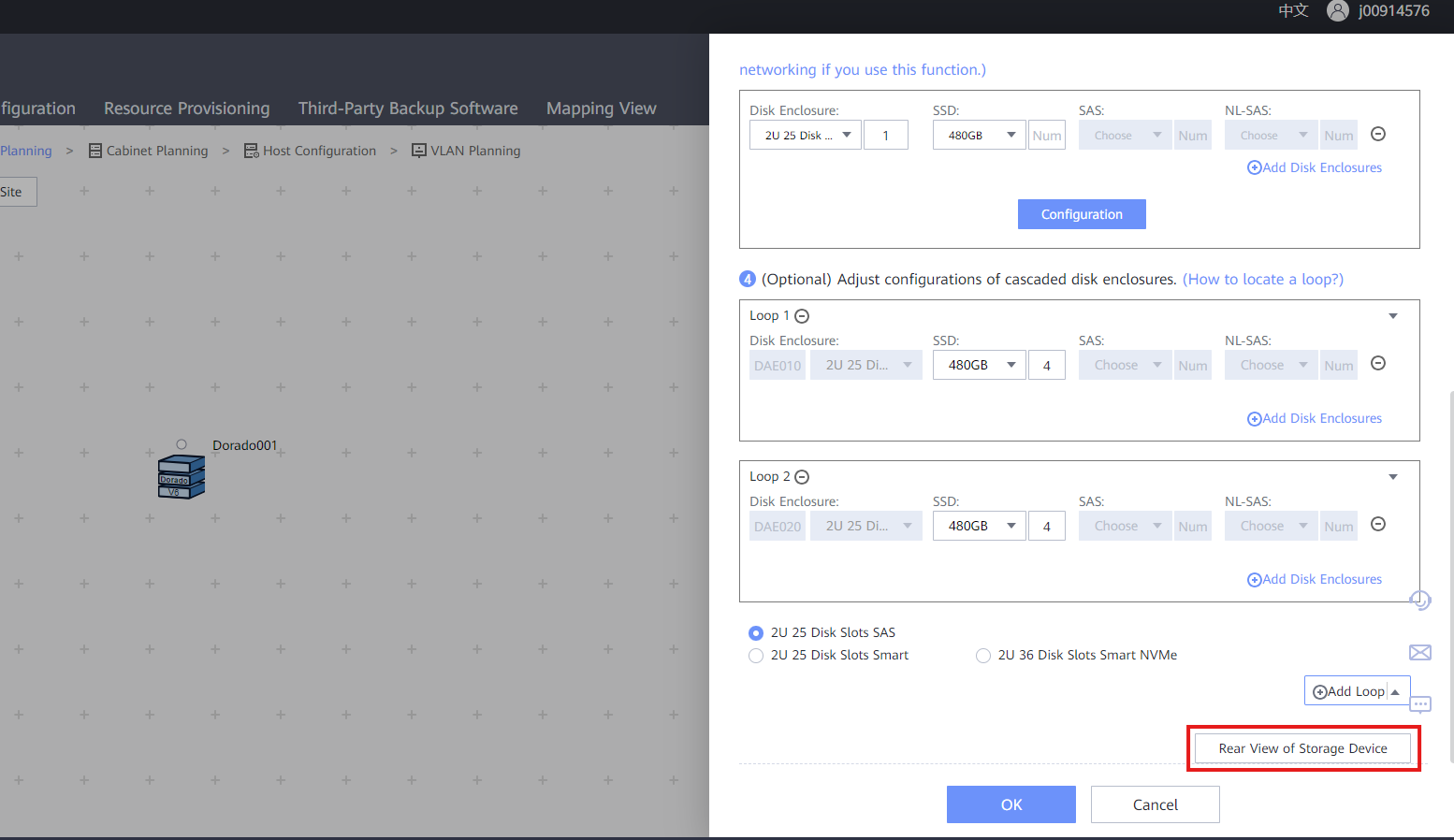
Disk Enclosure : Select the Disk Enclosure type (given by client) and the number of them
- SSD / SAS : Add the Disks that will be included in the DAE
- Click ' Configuration ' to add the DAE(s) automatically to the Storage Device
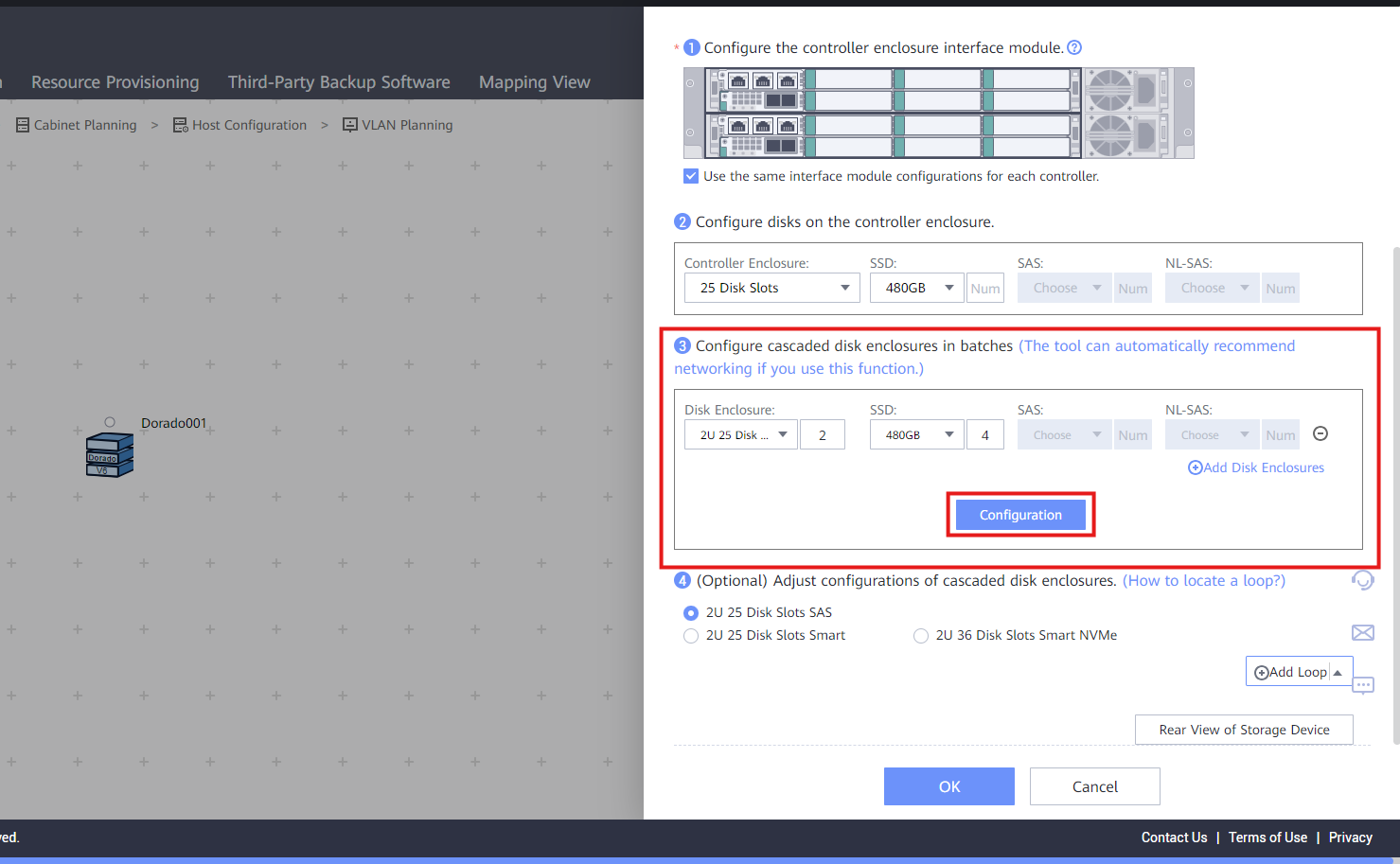
- For checking the connections, click ' Rear View of Storage Device '