Remote Device Connection
Requirements
- Connection to both cabinets
- IPs for logical ports
- Credentials for both cabinets
Tasks
- Connect to Cabinet A
- Create a Storage Pool and a vStore : vStore Creation
- Create a Logical Port : Logical Ports Creation
- Connect to Cabinet B
- Create a Storage Pool and a vStore : vStore Creation → Use the same names as Cabinet A
- Create a Logical Port : Logical Ports Creation → Use the same port types as Cabinet A
- Connect to Cabinet A
- Enter Data Protection > Remote Devices
-
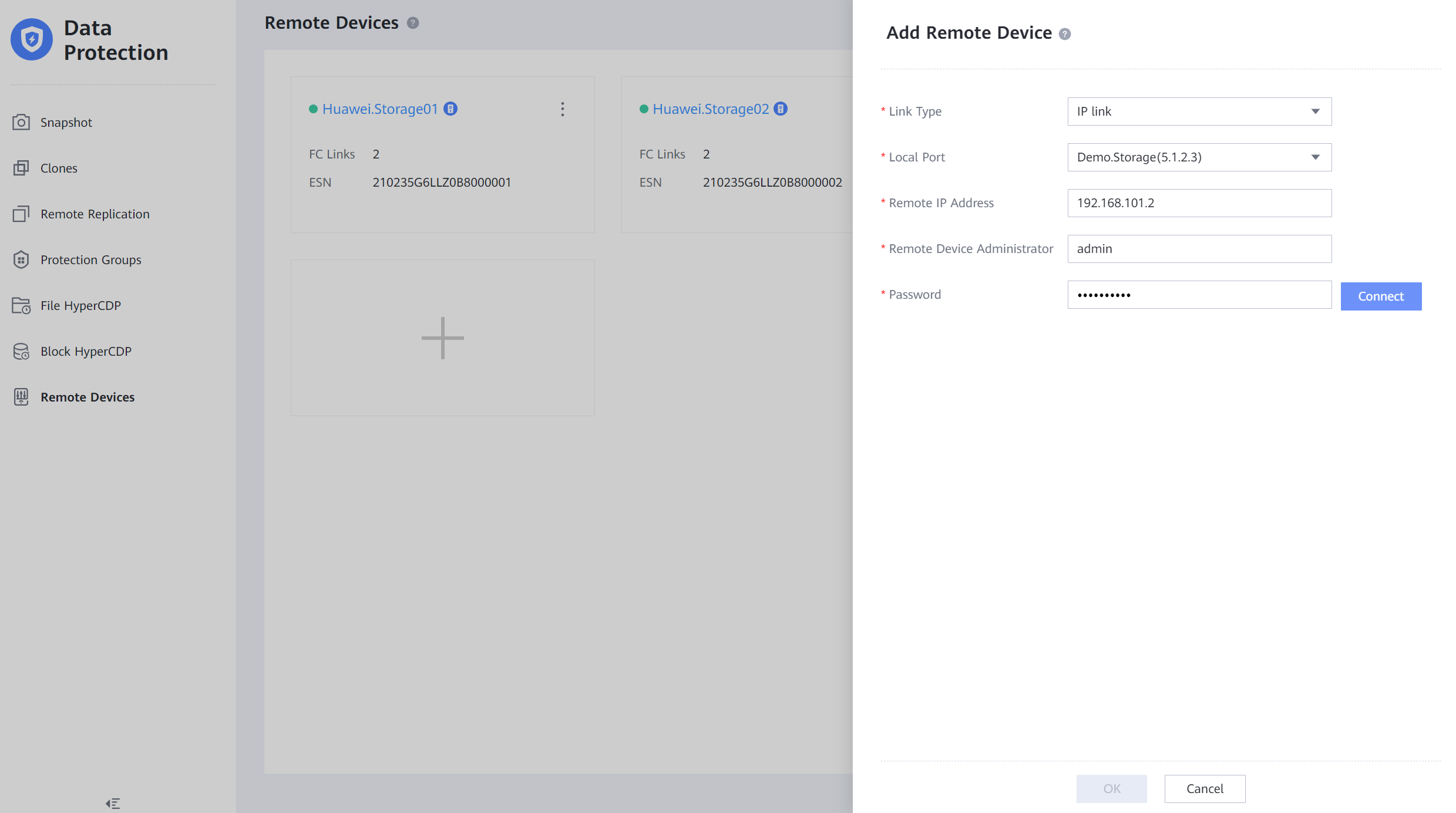
Click ' + ' and fill out with information:
-
Link Type : Choose either IP link or FC link
- Local Port : Select the Logical Port of Cabinet A
- Remote IP Address : IP of the address on the Logical Port of Cabinet B
- Remote Device Administrator : Admin user of Cabinet B
- Password : Admin password of Cabinet B
- Press ' Connect ' to connect the devices
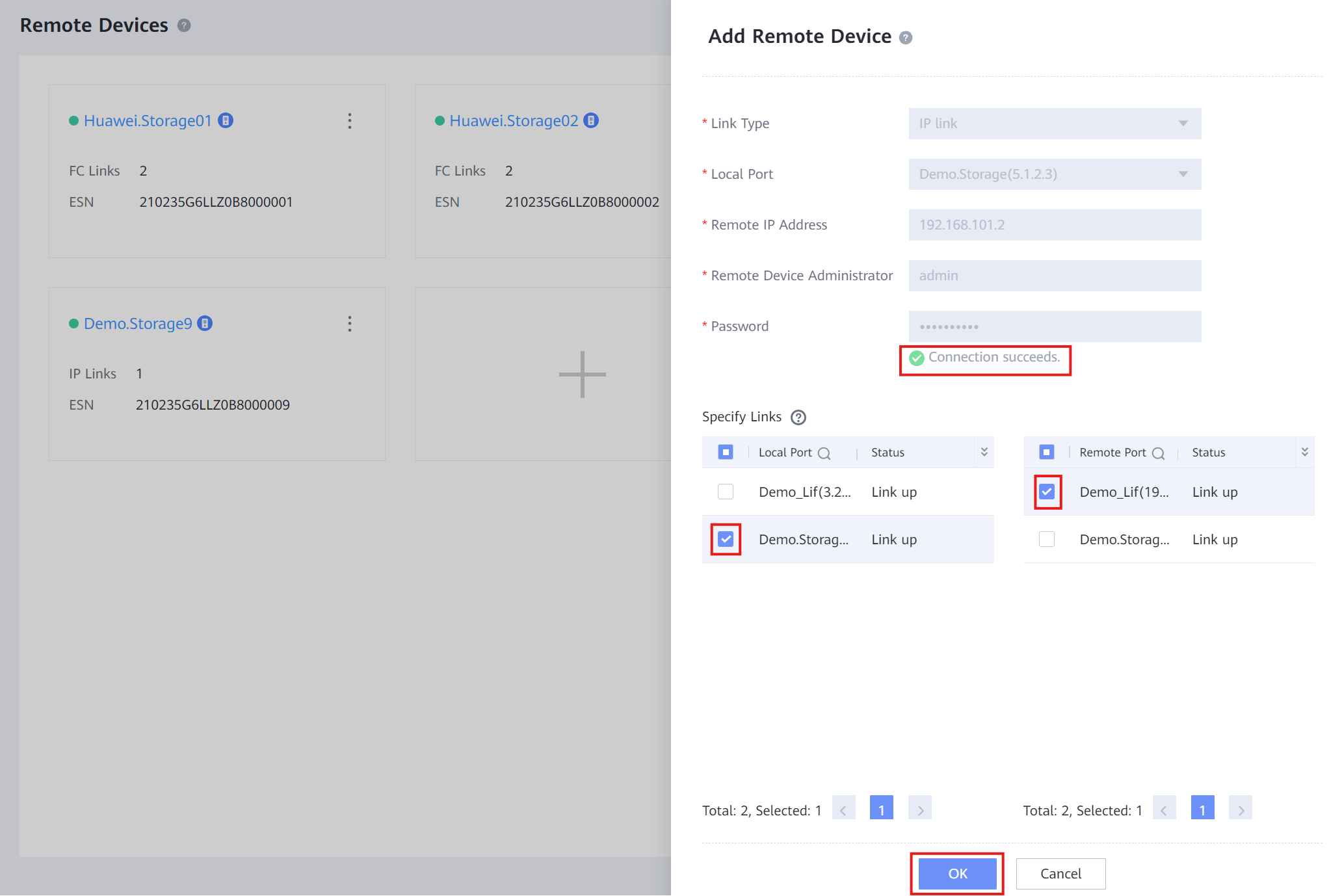
- Select the links and click ' OK ' to link the devices
Redundancy Links Setup
Requirements
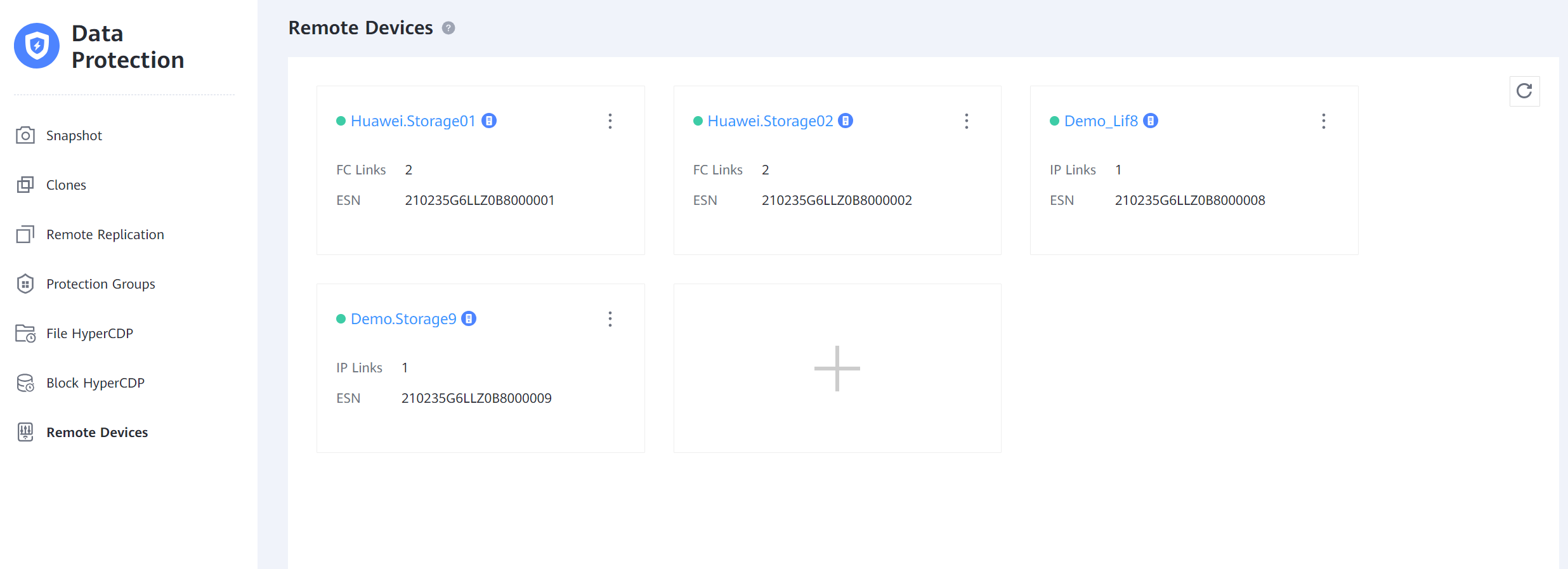
- Remote Device added between Cabinet A & Cabinet B
Tasks
- Connect to Cabinet A
- Enter Data Protection > Remote Devices
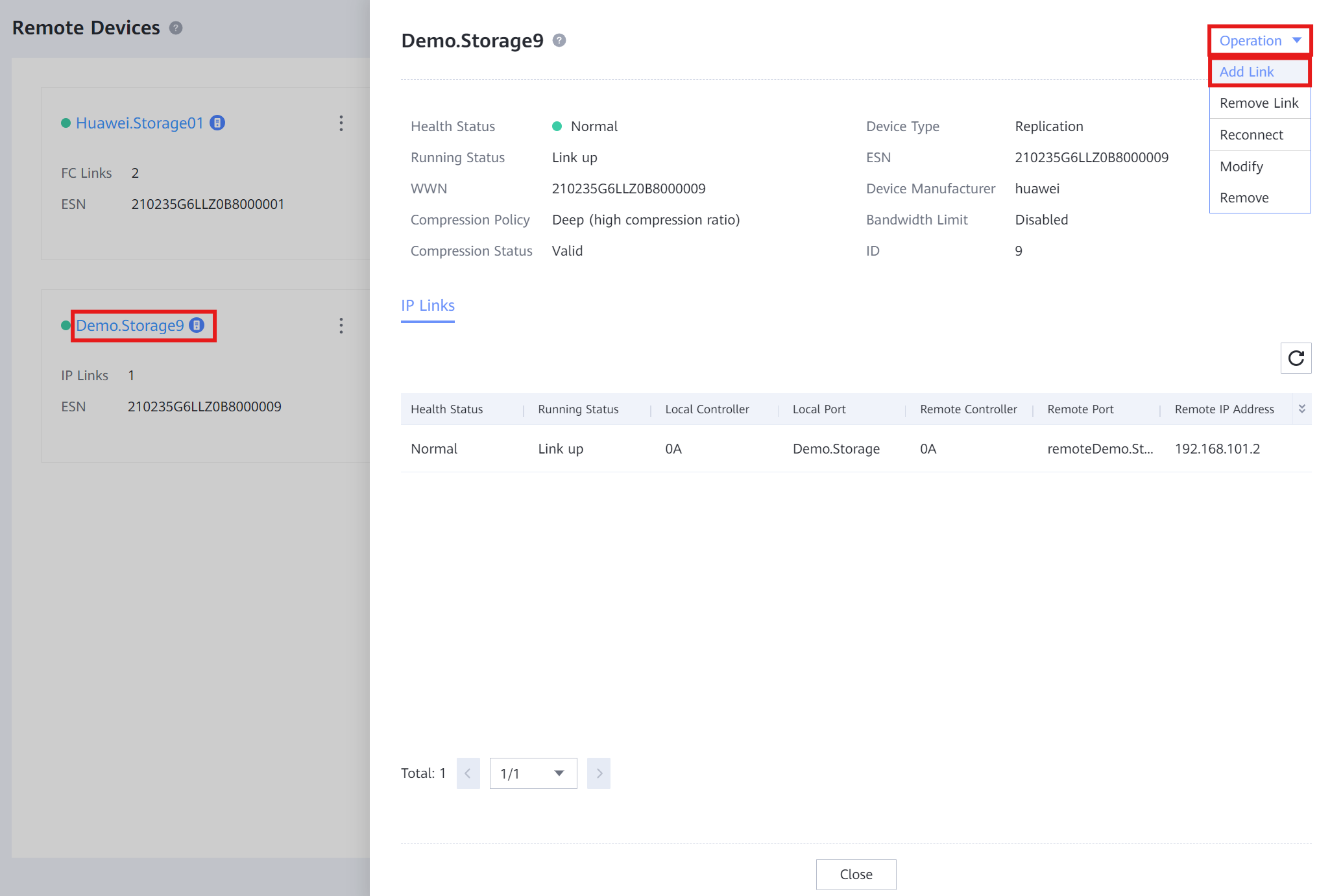
- Click on the Remote Device > ' Operation ' > ' Add Link '
- Select other connected ports to establish new Links and click ' OK '