Update Machine's Software
Smart Kit
Requirements
- Smart Kit with all functions installed: SmartKit Download
- Main Software and Patch downloaded: Main and Patch Software Download
- Management IPs of the Controllers (given from client)
- Ethernet (RJ45) Cable for connection
Tasks
- Connect to the Controller through the RJ45 cable
- Open the SmartKit Software
-
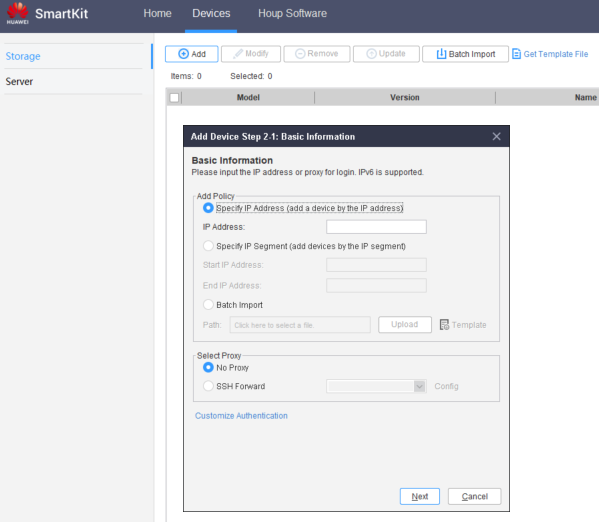
Add the device if it's not there already in Devices > Add :
-
IP : Use the management IP of the controller
- User : admin
- Pass : Admin Password (given by customer)
 4. Go to Upgrade/Patch Installation > Device Upgrade > Upgrade Policy Setting
5. Select the Device to update
4. Go to Upgrade/Patch Installation > Device Upgrade > Upgrade Policy Setting
5. Select the Device to update
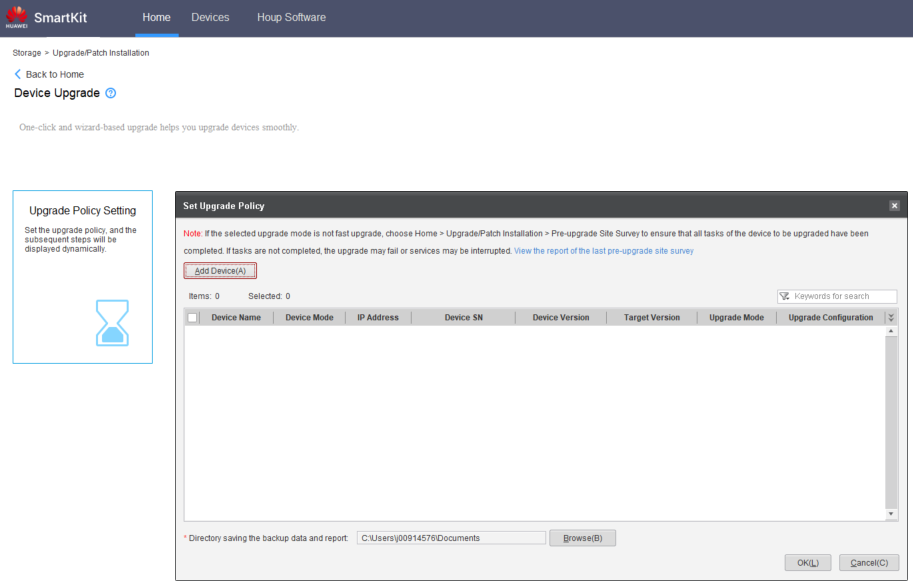 6. Select Upgrade Storage Device
7. Browse for the Main Update file and press Finish
8. Click Modify to select the Patch Update after the Main Update finishes
9. Click OK to start the Device Upgrade
6. Select Upgrade Storage Device
7. Browse for the Main Update file and press Finish
8. Click Modify to select the Patch Update after the Main Update finishes
9. Click OK to start the Device Upgrade
Device Manager
Requirements
- Main Software and Patch downloaded of required Storage Solution
- Management IPs of the Controllers (given from client)
- License File for the required Storage Solution
- Ethernet (RJ45) Cable for connection
Tasks
- Connect to the Controller through the RJ45 cable
- Open Device Manager (https://192.168.128.101 or the IP of the port) > Settings > Basic Information > Upgrade
- Click on Manual Upgrade button to start the process
-
For Patch Update :
-
Click Hot Patch
- Check that Current Version is correct
- Unmark Update Check Item Component Package
- Patch Package: Browse for the Update File and click Upload
- Click Upgrade
-
For Main Update :
-
Click System Upgrade
- Check that Current Version is different from the one to update
- Unmark Update Check Item Component Package and click Evaluate
- After the process is done, upload the License File and click Next