Change IPs of Controllers
Requirements:
- Default IPs of the Controllers Management Ports (check data section)
- Management IPs designed for the machines (given by client)
- Ethernet (RJ45) Cable for connection
Data
- Default IPs of Management Ports of the Controller:
- Port A: 192.168.128.101
- Port B: 192.168.128.102
- Default IPs of Maintenance Ports of the Controller:
- Port A: 172.31.128.101
- Port B: 172.31.128.102
- Default IPs of Network Ports of the Controller:
- Port A: 127.127.127.10
- Port B: 127.127.127.11
- Default passwords: Huawei12#$ / Admin@storage / admin@Storage / Admin@Storage
Tasks
-
Change network adapter IP of the laptop
-
Go to Network Settings > Advanced Network Settings > Network Connections
- Locate Ethernet Adapter > Properties
- Select Internet Protocol Version 4 (TCP/IPv4) > Properties :
- IP: Different from the default ones of the controller
- Subnet: 255.255.255.0
- Click ' OK ' to apply the changes and close the windows
- Connect the RJ45 cable to the Management Port of the Controller A to the laptop
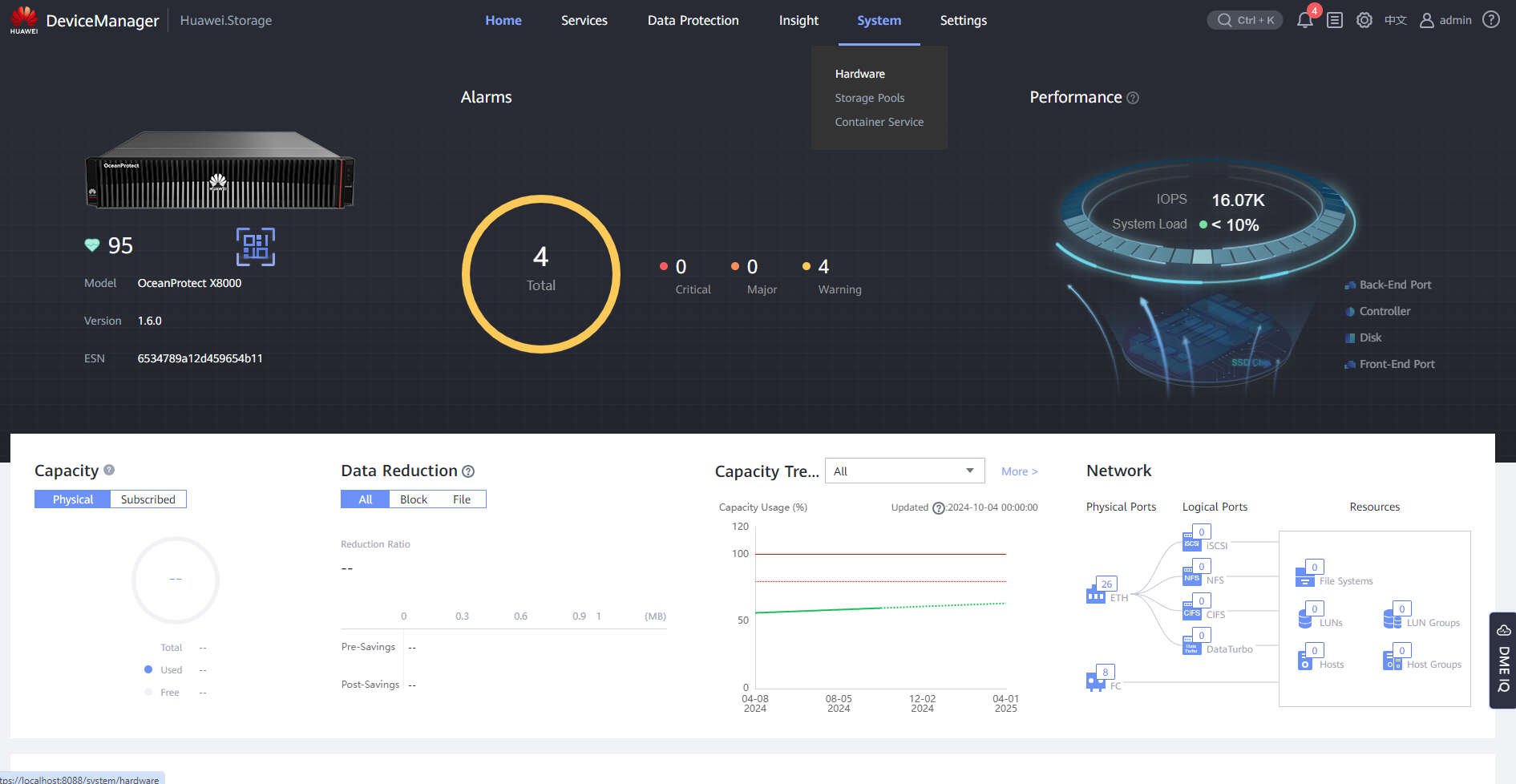
- Open Device Manager (https://192.168.128.101:8088 or the port IP) > System > Hardware
- Select the controller enclosure > Move to the back > Select the management port of the Controller B
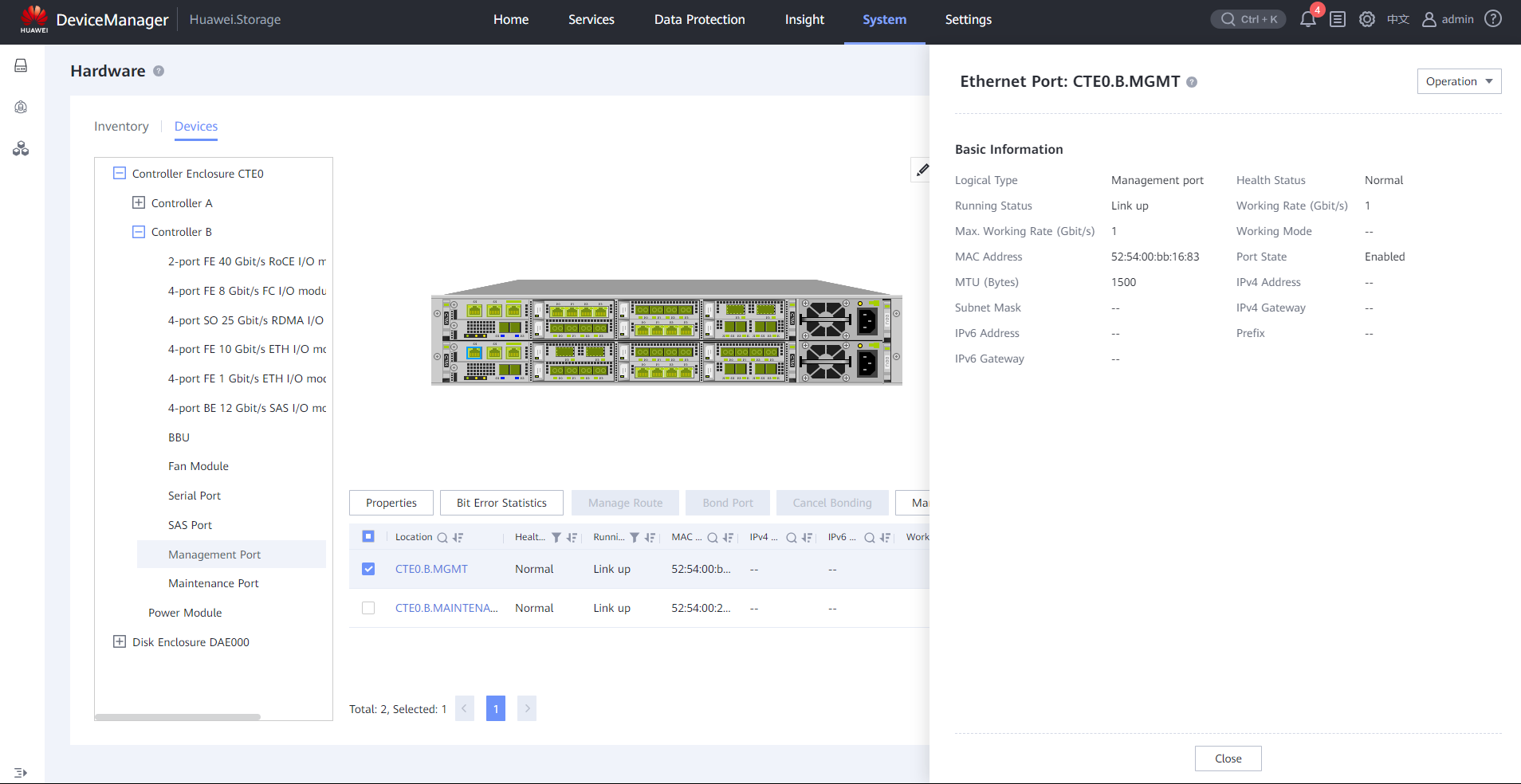
-
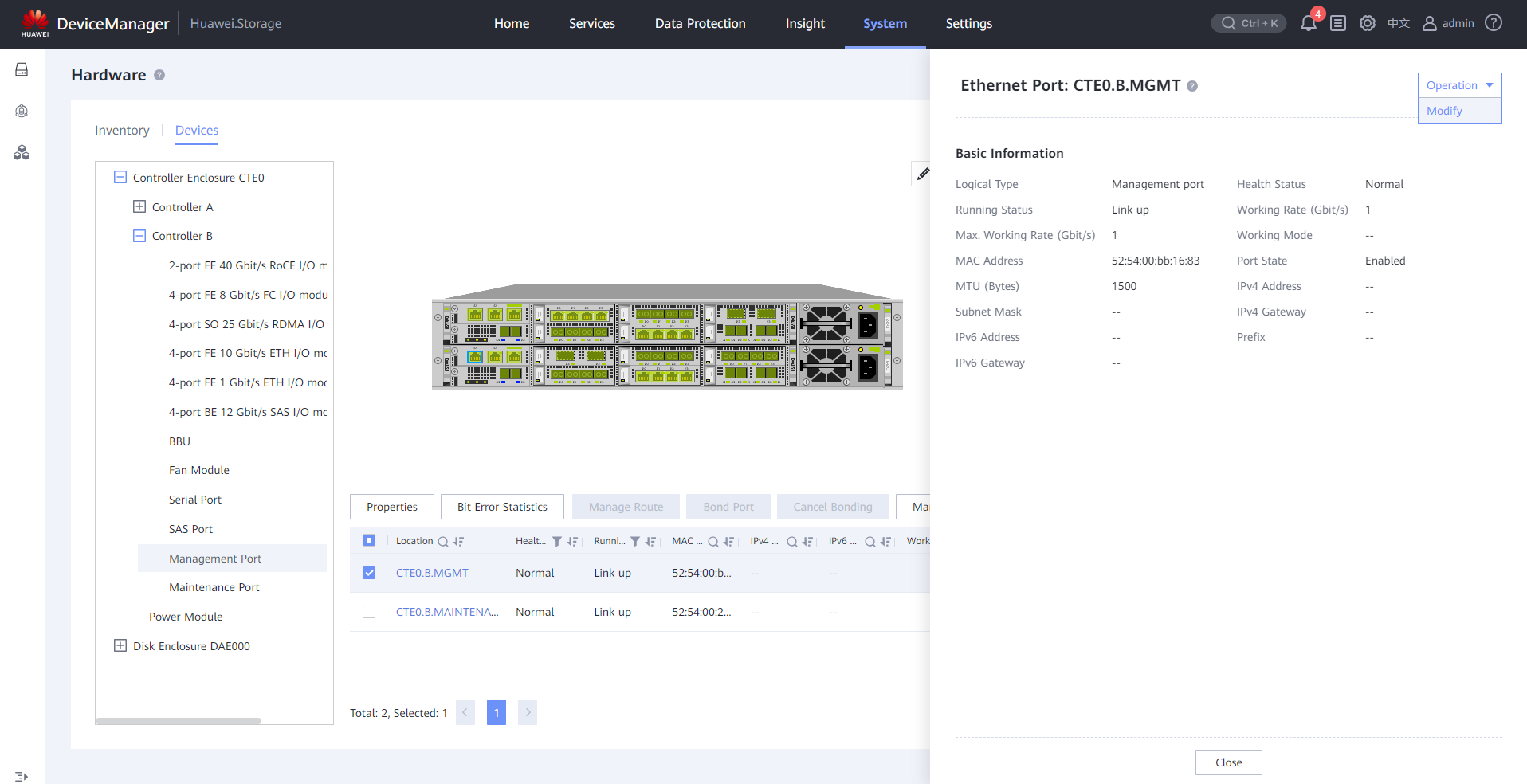
Click Operation > Modify to change the IP of the controller:
-
IP: Set the management IP
- Leave the rest as is
 6. Do the same for the Controller A
7. Disconnect from the machine and ask the client to test the connection to the changed management IP
6. Do the same for the Controller A
7. Disconnect from the machine and ask the client to test the connection to the changed management IP
Extra Information
- To reconnect to the Machine after changing the Management Port IPs , you should also change your PC Ethernet Port to match the changed IPs