Create Scale Out Storage Project
Definition
Scale-Out Storage projects use the OceanStor Pacific devices to create a distributed storage cluster, formed of several OceanStor Pacific nodes.
Tasks
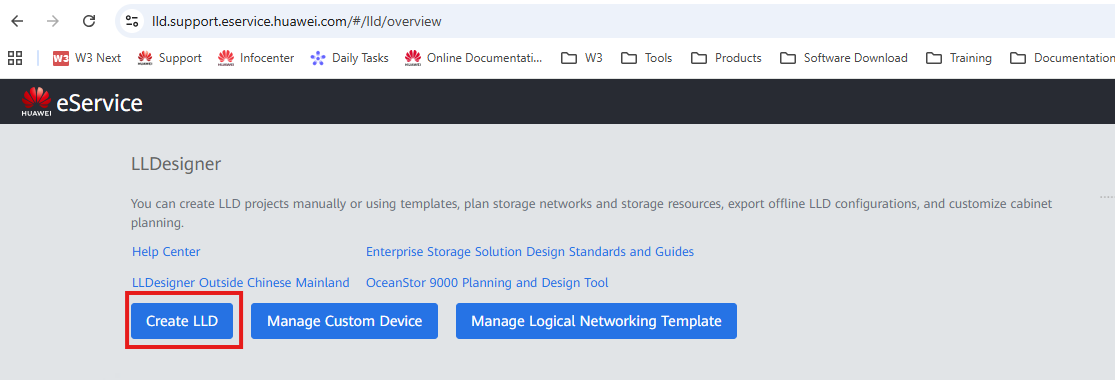
- Access LLDesigner and create a new project: Link
- Select the 'Customize Devices to Create LLD' option :
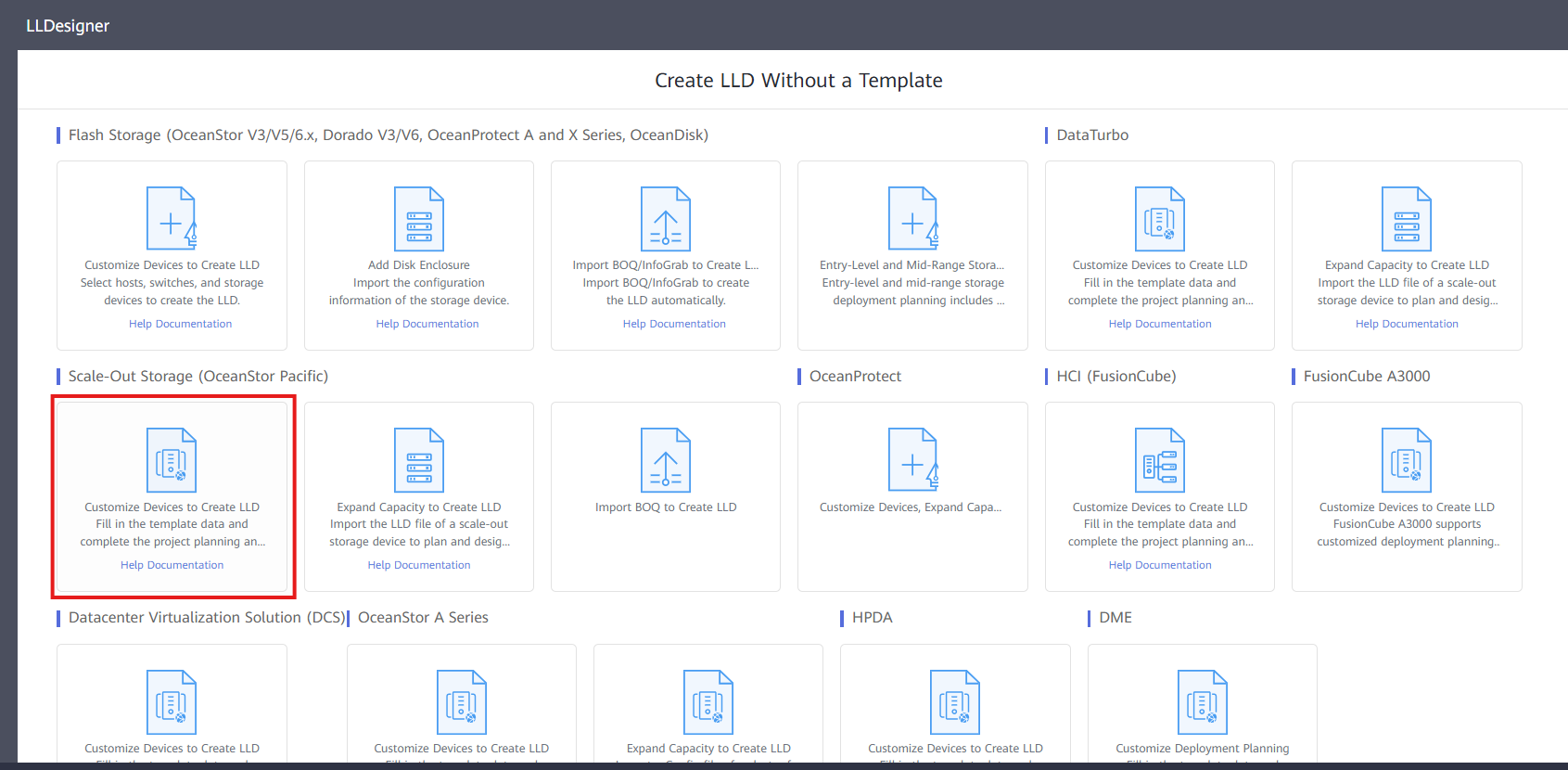 3. Fill out the 'Create Project LLD' screen:
- Project type: Carrier / Enterprise
- Product version (service): Select the OceanStor Pacific firmware version
- Rep Office / Business Dept: Select region / Rep Office
- Project Name: Name of the project
- Contract No: Add the contract number for reference

-
Fill out the Sub-Scenario:
-
DPC Scenario (File Service): HPC scenarios use this option. DPC needs to be deployed on the Pacific cluster, as well as deploying the DPC client on the hosts that access the storage cluster. This application enables direct inter-node access to the distributed storage, greatly improving reading times.
- Standard Protocol Scenario (File/Object/HDFS Services): Most common deployment for OceanStor Pacific deliveries. Supports general distributed storage use cases through multi-protocol.
- DPC and Standard Protocol Hybrid Scenario: Hybrid between the first two options. Enables DPC when some of the compute nodes Operating systems don't support it.
- HCSO Services: Applies to scenarios where SFS is integrated

-
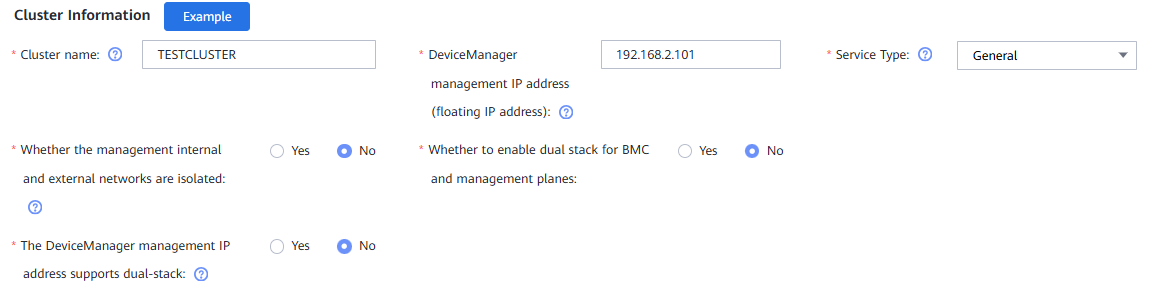
Fill out 'Cluster Information':
-
Cluster name: Name of the OceanStor Pacific Cluster
- DeviceManager management IP address: Floating IP on management IP subnet for the deployment of the DeviceManager O&M application.
- Service Type: Select the service type (General is recommended)
- Whether the management internal and external networks are isolated: Management network plane can be divided into internal and external. External refers to the one accessed by the customer network for O&M operations, while the internal is for node interconnections. In normal scenarios, this option is marked as 'No'.
- Whether to enable dual stack for BMC and management planes: This enables the operation of both IPv4 and IPv6 simultaneously for the management and iBMC network planes. For normal scenarios, this option is marked as 'No'.
- The DeviceManager management IP address supports dual-stack: Whether the DeviceManager IP supports the operation of both IPv4 and IPv6 simultaneously.
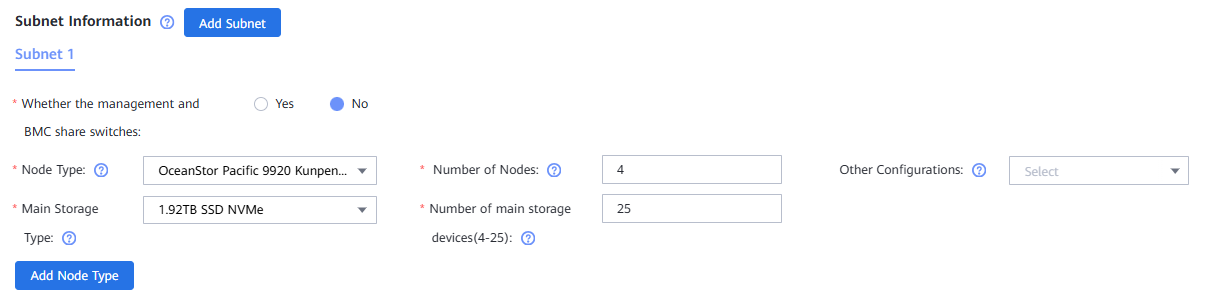
 Fill out 'Subnet Information':
 -
- Whether the management and BMC share switches: If there are different switches used for the Management and the iBMC plane, select 'Yes' (recommended). If the same switches are used, select 'No'.
- Node Type: Model of the OceanStor Pacific devices.
- Number of Nodes: Total number of nodes in the Cluster.
- Other Configurations: If NFSoRDMA or NFSoRDMA + service are used, they are selected.
- Main Storage Type: Type of disk and capacity
- Number of main storage devices: Number of disks per node on the Cluster.
-
Fill out 'Networking Information':
-
Whether the front and back ends share the same plane: If the Storage plane (FE + BE) share the same network plane, this option is marked as 'Yes'. For most scenarios, this is the case.
- Number of replication IP addresses: In case of replication of the Cluster against another Cluster, the number of IPs must be selected on this field.
- Storage Networking Model: Type of links used on the Storage network plane (FE + BE).
- Storage Switch Model: Switch model used for the Storage network plane connections.
- Storage network traffic classification: In case RoCE is selected for 'Storage Networking Model', DSCP or PCP bits must be selected for the header (commonly used DSCP).
- Multiple IP Addresses for Storage Network: Number of IP used for the Storage Network.
- Service Networking Type: Type of links used for the Service network plane.
- Service Switch Model: Switch model used for the Service network plane connections.

-
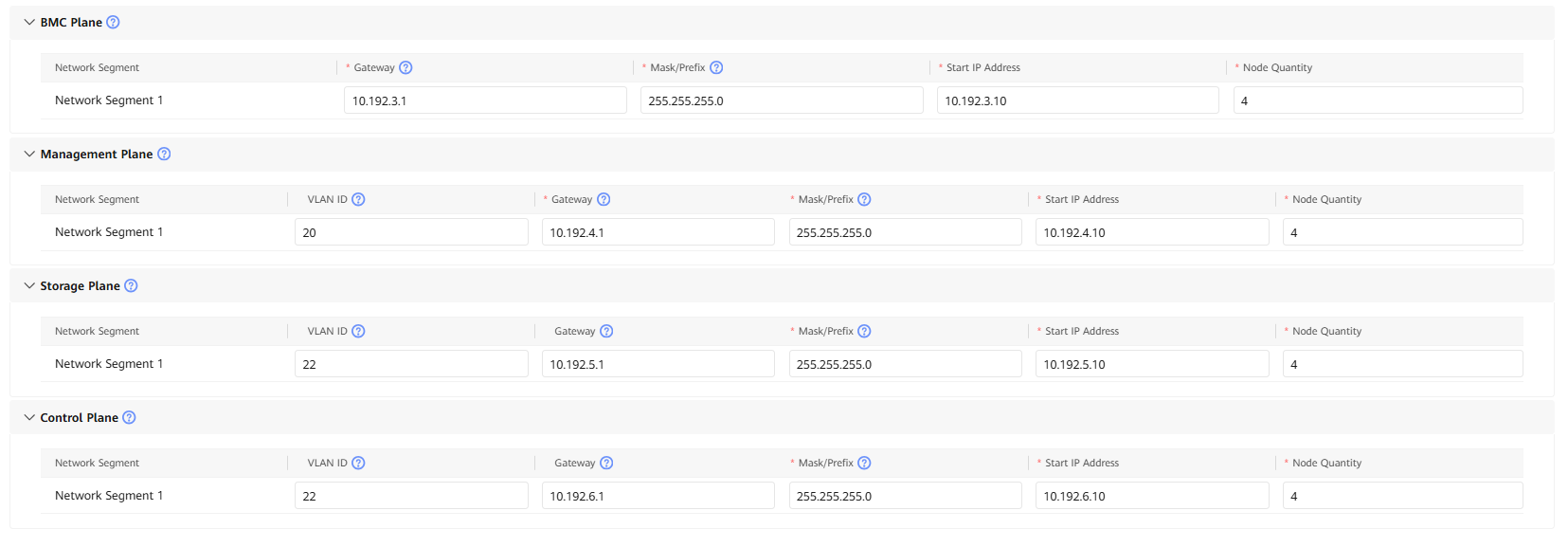
Fill out 'Network Configuration':
-
BMC Plane: Input Gateway, Mask, Start IP Address and Node Quantity.
- Management Plane: Input VLAN ID, Gateway, Mask, Start IP Address and Node Quantity.
- Storage Plane: Input VLAN ID, Gateway, Mask, Start IP Address and Node Quantity.
- Control Plane: Input VLAN ID, Gateway, Mask, Start IP Address and Node Quantity.
- Press 'OK' button to finish LLD Creation process.