Dual Quorum Configuration
Definition
HyperMetro Domains can use two Quorum Servers, acting as Active-Passive. In case of failure on the active Quorum Server, the storage devices will move to the Passive Quorum Server, thus adding a redundancy layer to the Quorum Server arbitration.
Requirements
- Passive Quorum Server installed (see: [[Quorum Server Install]])
- Passive Quorum Server IPs Configured
- Access to Active & Passive Quorum Servers
Certificate Exporting
- Access the Passive Quorum Server:
qsadmin - Export the certificate request file (.csr):
export tls_cert - Check the file created in /opt/quorum_server/export_import directory
Certificate Signing
- Move the certificate request file (.csr) from the Passive Quorum Server to the Active Quorum Server's /opt/quorum_server/export_import directory
- Give permissions to the file for the Quorum Server:
chown quorumsvr:quorumsvr FILENAME.csr - Sign the .csr file and generate the CA .crt file:
generate tls_cert csr=FILENAME.csr cert_name=FILENAME.crt - Obtain the CA file (cps_ca.crt) and the signed Passive Quroum Server certificate (FILENAME.crt) from the /opt/quorum_server/export_import directory
Import Certificates
- Move the CA file (cps_ca.crt) and the signed Passive Quroum Server certificate (FILENAME.crt) from the Active Quorum Server to the /opt/quorum_server/export_import directory in the Passive Quorum Server
- Give permissions to the files on the Passive Quorum Server:
chown quorumsvr:quorumsvr cps_ca.crtchown quorumsvr:quorumsvr FILENAME.crt - Import the certificates on the Passive Quorum Server:
import tls_cert cert_name=hm_third_cert1 ca=cps_ca.crt cert=qs_cert.crt class=hm
Device Whitelisting
- Access the Quorum Server:
qsadmin - Query the certificate ID and record the 'Cert id' value:
show tls_cert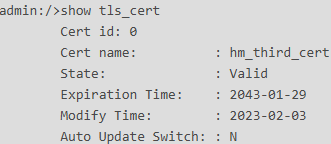
Use the cert_id: 1 generated after importing the certificate
3. Whitelist the Storage Device(s):
add white_list sn=xxxxxxxxxxxxx cert_id=1